


Live Drawing gives you and your connected partner one canvas to make something on in real time. You can draw a quick hello, take turns adding to a picture, or spend a few minutes on a silly prompt. Here is how to find the feature, use the tools, and keep the result as a memory.
Before you start
Both of you should have Lovelle and be connected as partners for the shared experience. Plan a moment when you are both online, with a working internet connection.
Live Drawing checks your feature access. If Lovelle shows a trial or Premium screen, review the options in the app before continuing. This guide follows the English labels; wording may vary with your language or app version.
1. Open Live Drawing from Quick Together
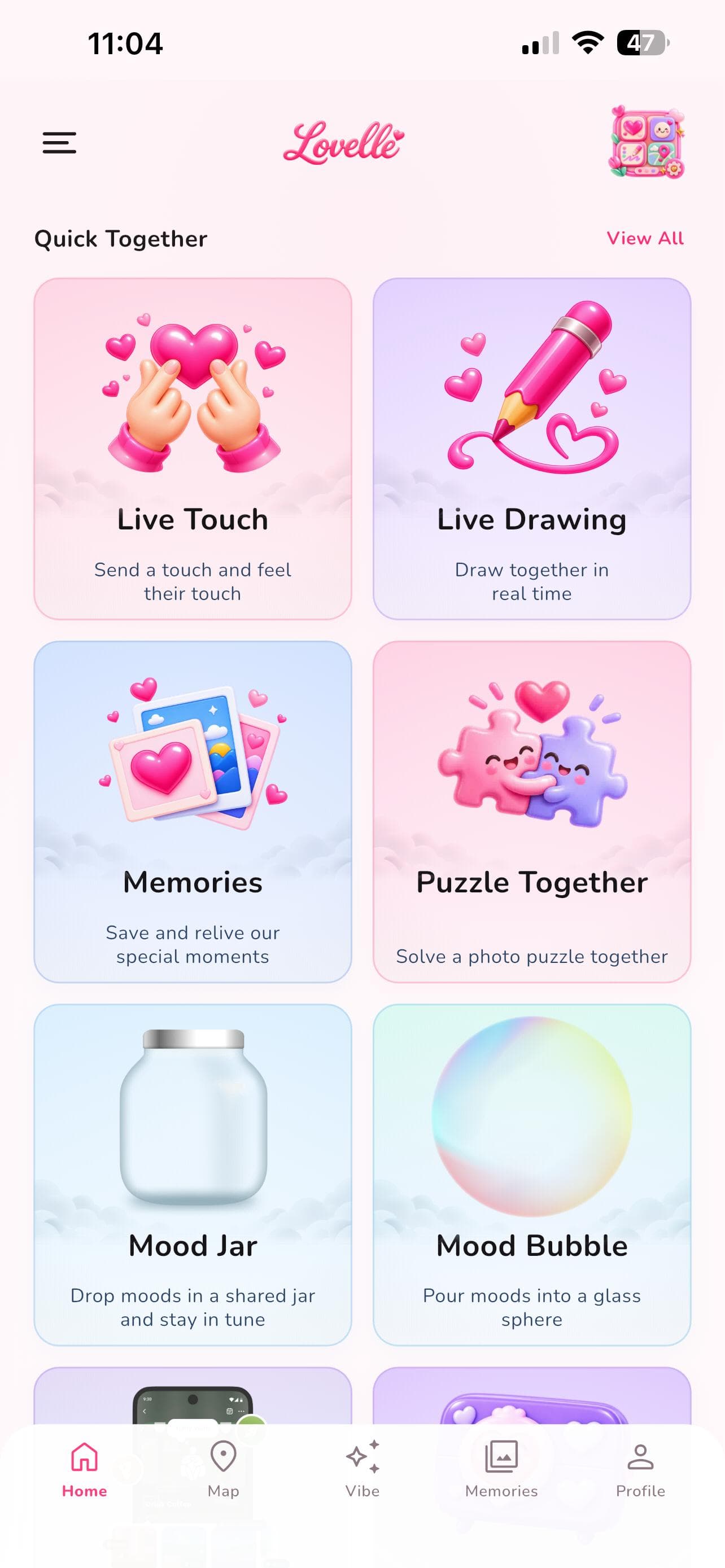
From Home, open Quick Together and choose Live Drawing. The activity screen introduces the shared canvas. Select Start Drawing to open Our Canvas.
Ask your partner to open Live Drawing too. This is an activity inside the Lovelle app; the article itself is not a browser drawing room.
2. Choose a pen, colour, and a small idea
On Our Canvas, start with Pen and Colors. Try a heart, a little scene from your day, or a deliberately uneven portrait. Use Eraser when you want to remove part of the drawing.
Agree on a simple way to draw together: you can each take a side, alternate one detail at a time, or make a picture from the same prompt. You do not need to be good at drawing to enjoy it.
- A five-minute prompt: draw a café that serves only your favourite snacks.
- A tiny shared story: one person draws a character, the other adds where they are going.
- An easy warm-up: make a portrait using only circles and triangles.
3. Adjust the background if you want to
The Bg control opens the background options. If you choose a photo or another backdrop, check whether you want it For both of you or Just for me. That choice matters when you are working on a shared picture.
A plain background is enough for a first drawing. Ask before changing a backdrop your partner is using, especially if it changes how their part of the picture looks.
4. Undo a stroke or save the drawing
Open More to find Canvas actions. Undo last stroke and Redo last stroke can help with a small mistake. Clear drawing starts fresh, so agree with your partner before clearing the shared work.
To keep the result, choose Save to memories. Once the drawing is saved, you can give it a Drawing Title, choose View in Memories, or use Draw Again to return for another little moment.
If the shared canvas is not updating
Check that you are both online, signed into the expected accounts, and connected to each other in Lovelle. Try leaving the activity and reopening it. If an access screen appears, follow the options shown in the app.
If the problem continues, contact Lovelle Support with your app version, device type, and a short description of what happened. You do not need to send a private drawing or photo to explain a connection problem.
Pick a prompt for your next canvas
Keep the first session short, then ask which part you both enjoyed. A simple recurring prompt can be more fun than trying to create a perfect picture. Save the drawings you both want to revisit, and ask before sharing them outside your space.
Q & A
A few questions you might have
Can my partner and I draw on the same canvas?
Yes. Live Drawing is designed for connected partners to create on a shared canvas in real time. Open the activity in both apps and make sure both devices have an internet connection.
How do I save a Live Drawing in Lovelle?
Open More on Our Canvas and choose Save to memories. The saved-drawing screen lets you add a Drawing Title and choose View in Memories.
Do I need Premium for Live Drawing?
Lovelle checks access when you enter Live Drawing. If a trial or Premium screen appears, review the current options and terms in the app. Do not assume your connected partner’s purchase automatically covers your account.
Found an idea for the two of you?
Send it to your person and choose something to try together.