

A photo can be the start of a little activity, not just something you scroll past. Puzzle Together turns an image into a shared puzzle for you and your connected partner. Choose a picture, pick a difficulty, and each contribute your pieces to one finished moment.
Before you start: pick a photo you both enjoy
A favourite trip, a pet, a meal, or an ordinary day can all make a good puzzle. Start with a photo that has recognisable shapes and colours. A very dark image or a large area of plain sky can make it harder to tell pieces apart.
Both of you should have Lovelle and be connected as partners. Puzzle Together checks feature access, so review any trial or Premium options shown in the app before starting. This guide uses the English labels, which can differ by language or version.
1. Open Puzzle Together
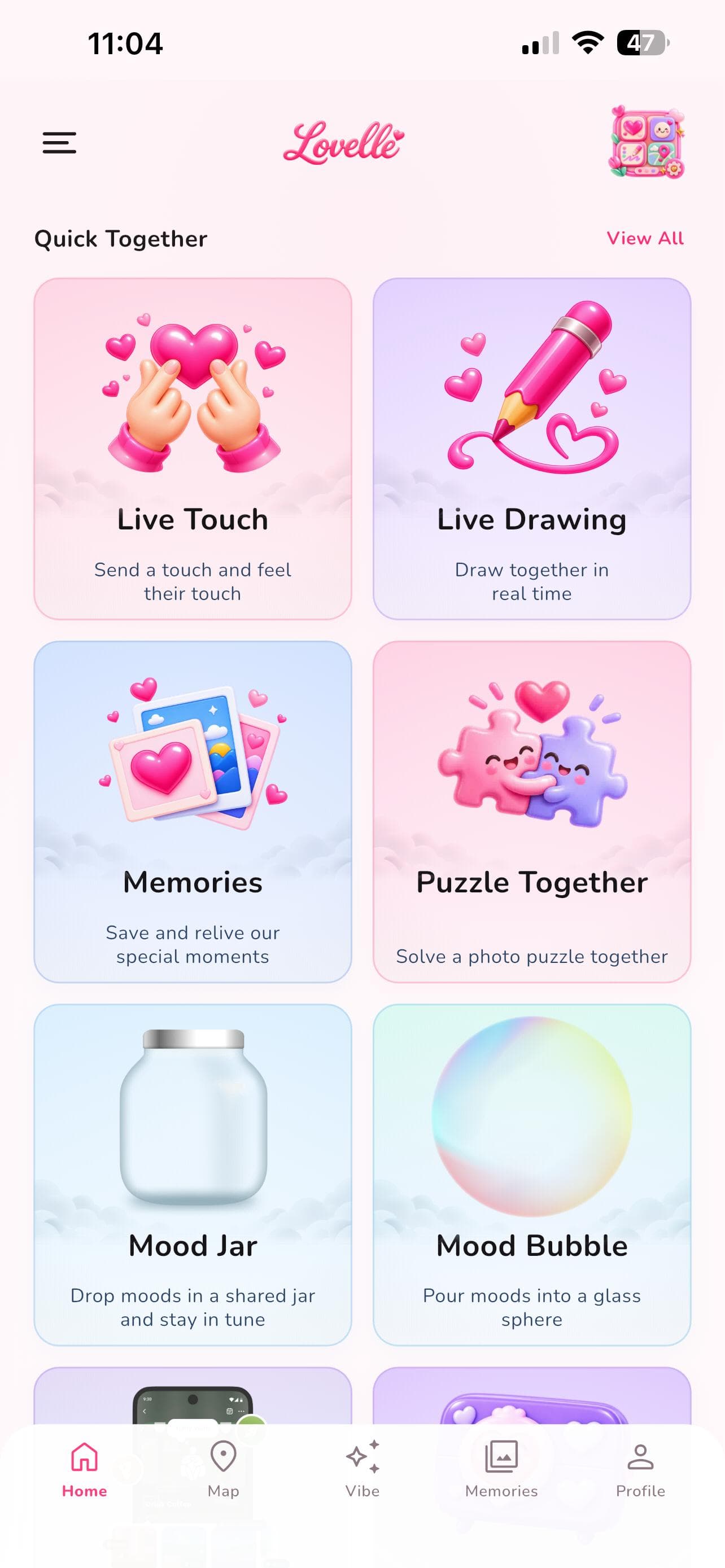
From Home, open Quick Together and choose Puzzle Together. That opens the setup screen for a new photo puzzle.
Have your chosen photo available on the device creating the puzzle. Use an image you are comfortable sharing with your connected partner; check for other people’s private details before selecting it.
2. Select your photo
Choose Upload Photo and select the picture you want to use. The setup screen also includes Choose a Memory; follow the image-selection options your version presents.
Check the preview before starting. If you are using a meaningful photo, tell your partner why you picked it after they join. It can turn an ordinary puzzle into a conversation about a shared day.
3. Pick a difficulty and start the puzzle
Under Choose difficulty, pick the size that suits the time you have. Easy is a good first session; you can choose a more detailed puzzle another time.
When the photo and difficulty are ready, select Start Puzzle. Keep the app connected while the puzzle is being created.
- Easy: a 3 × 3 grid with 9 pieces.
- Normal: a 4 × 4 grid with 16 pieces.
- Hard: a 5 × 5 grid with 25 pieces.
4. Let your partner join
The waiting screen lets you know that the puzzle is ready for your partner. They can choose Join Puzzle from the invite. If you both want to play now, Nudge Partner is available on the waiting screen.
If the timing does not work, choose Play when they’re free. Treat an invitation as something your partner can answer when ready, rather than a request for an immediate response.
5. Add your pieces to the shared picture
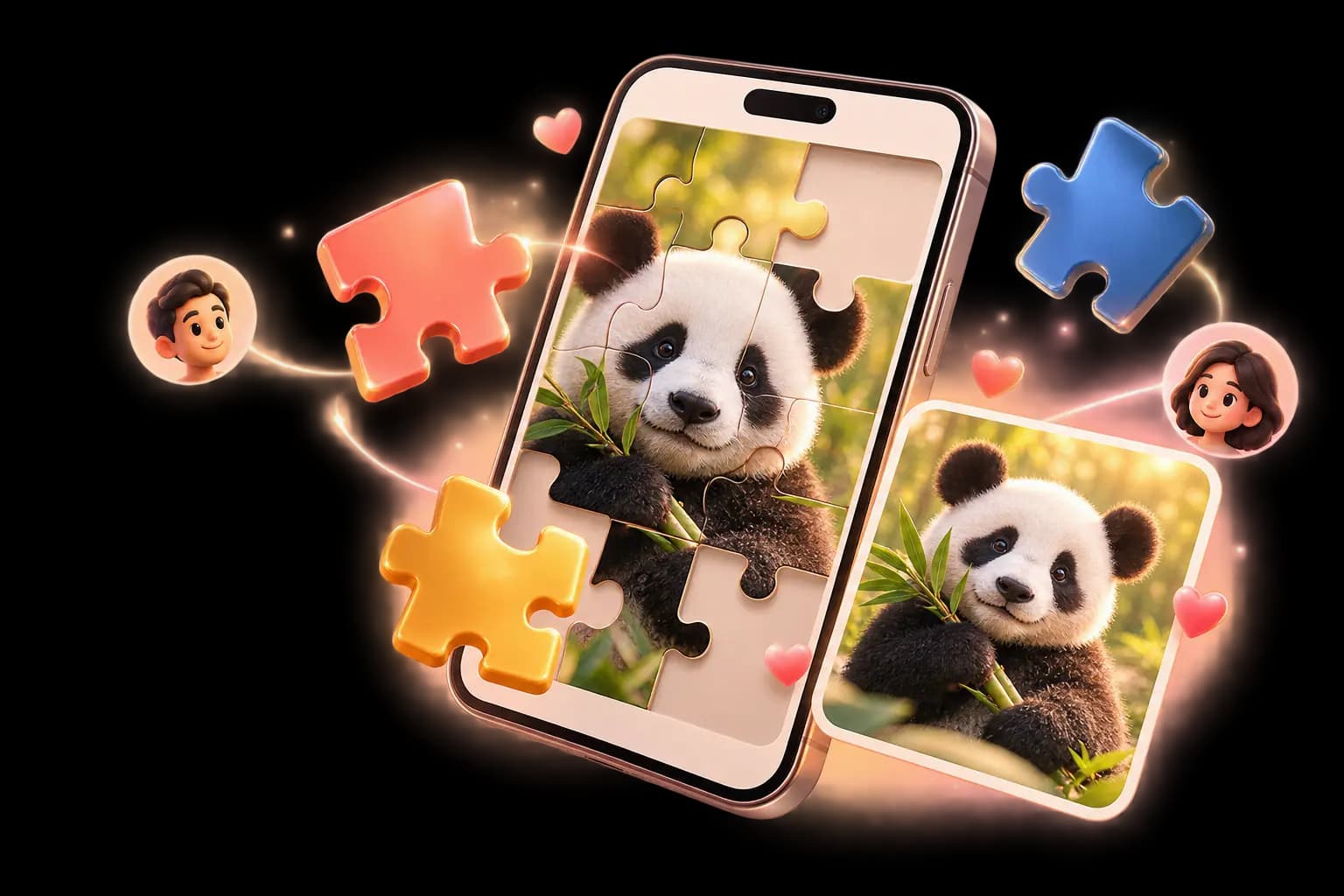
The puzzle screen separates Your pieces from Partner’s pieces. Work with your assigned pieces and place them on the shared board. You both contribute to completing the same image.
You can talk about the picture while you play, or simply enjoy working on it. If you use a voice or video call alongside the puzzle, keep it in the calling app you normally use.
6. Save the completed moment
After you complete the puzzle, the finished screen includes Save to Memories. If it has already been saved, View in Memories takes you to it. You can also choose Play Again for another round.
Use a different photo for your next session or repeat a favourite at a new difficulty. Ask your partner before sharing a screenshot or the original image beyond the two of you.
If you cannot start or join a puzzle
Check your internet connection, partner connection, and the feature-access options shown in the app. When creating a puzzle, make sure a photo has been selected before pressing Start Puzzle.
If the problem continues, use Lovelle Support and describe your device, app version, and the step where you got stuck. You can explain an issue without sharing the private photo you selected.
Q & A
A few questions you might have
How many pieces does a Lovelle photo puzzle have?
Easy has 9 pieces in a 3 × 3 grid, Normal has 16 in a 4 × 4 grid, and Hard has 25 in a 5 × 5 grid.
Do we both get puzzle pieces?
Yes. The shared puzzle splits pieces between the connected partners. The puzzle screen labels Your pieces and Partner’s pieces so you can each contribute to the same picture.
Can we keep the puzzle after finishing?
The completion screen offers Save to Memories. After it is saved, use View in Memories to revisit the moment. Check current access and storage details in the app.
Found an idea for the two of you?
Send it to your person and choose something to try together.